A Non-Technical Founder's Blueprint for Vibe Coding
January 18, 2026
Three months ago, I couldn't write a single line of code. Today, I have a live website, a content management system, an email list, and an AI-powered product prototype.
Total monthly cost: about $21.
This post is the blueprint I wish someone had given me.
My Story: 25 Years Without Writing a Line of Code
I've spent 25 years in sales and marketing. The last 15 years? Bootstrapping startups, consulting on product-led growth, managing content marketing programs, building and leading growth and product management teams. My focus has always been on SaaS and technology companies.
I've helped dozens of companies grow. I've written for Mind the Product, HuffPost, and Search Engine People. I published a book called "Inbound Marketing in the Age of GPTs."
I know how to grow businesses. I've done it for others. I've done it for myself.
But I never learned to code.
Every time I had a product idea, I faced the same wall. Hire a developer ($5,000-50,000 for an MVP). Find a technical co-founder (months of searching, equity negotiations). Use no-code tools (limited, locked into their ecosystem, monthly fees that add up).
I founded a matchmaking startup in India called Jodi Logik years ago. I had to hire developers for everything. Change a button color? Wait for the dev. Add a new field to a form? Wait for the dev. Fix a bug on the weekend? Good luck.
Every consulting engagement, every product idea, every automation I wanted to build required someone else to make it happen.
Then Claude happened.
I started asking it questions. Simple things at first. "How do I create a spreadsheet formula that does X?" Then, slightly harder things. "Write me a Python script that renames files in a folder."
The script worked. First try.
I asked for more. A script to scrape a website. A tool to analyze competitor data. A system to extract business services from web pages.
Each time, Claude wrote the code. I copied it, pasted it, ran it. When it broke (and it often broke), I took a screenshot of the error and pasted it right back. Claude read the screenshot and fixed it. We went back and forth until it worked.
This is vibe coding. You don't learn to code. You learn to communicate with an AI that codes for you.
Three months later, I've built more software than I built in the previous 25 years combined. The website you're reading this on? Built with Claude. The email signup form? Claude. The AI tool I'm developing to analyze competitor websites? Claude.
My only expense: a $20/month Claude Pro subscription plus $1/month for the domain name.
Here's exactly how I did it.
Before the How: The Architecture Decisions
When I decided to build growthfornuts.com, I had choices to make. Claude helped me think through each one. Here's the decision process.
The Website Platform Question
Option 1: WordPress
The default choice for most people. But I've seen WordPress sites break, get hacked, slow down under plugin bloat. Hosting costs money. Maintenance takes time. Every plugin update risks breaking something else.
Option 2: Squarespace / Wix
Easy to use, but $16-49/month. Locked into their ecosystem. Limited customization. Can't build anything beyond what their templates allow.
Option 3: Static Site Generator (Astro)
Free. Fast. Secure (no database to hack). Complete customization. Works with any hosting provider. The learning curve is higher, but with Claude, the learning curve disappears.
My choice: Astro. Zero monthly cost, maximum flexibility.
The Content Management Question
If I’m using Astro, how do I write blog posts without editing code each time?
Option 1: Edit files directly
Write posts as markdown files, push to GitHub. Works, but clunky. No visual editor.
Option 2: Headless CMS (Sanity)
A separate system where I write posts through a nice visual interface. The CMS talks to my website through an API. Free tier covers everything I need.
My choice: Sanity. I write posts like I'm using WordPress, but my site stays fast and free.
The Hosting Question
Where does the website live so people can access it?
Option 1: Traditional hosting
Pay $10-30/month for a server. Manage updates, security, backups myself.
Option 2: Vercel (or Netlify)
Free tier handles 100GB bandwidth/month. Automatic HTTPS. Global CDN. Connects directly to GitHub. When I push code, the site automatically updates.
My choice: Vercel. Free, automatic, no maintenance.
The Workflow: How It All Connects
Here's the architecture I landed on:
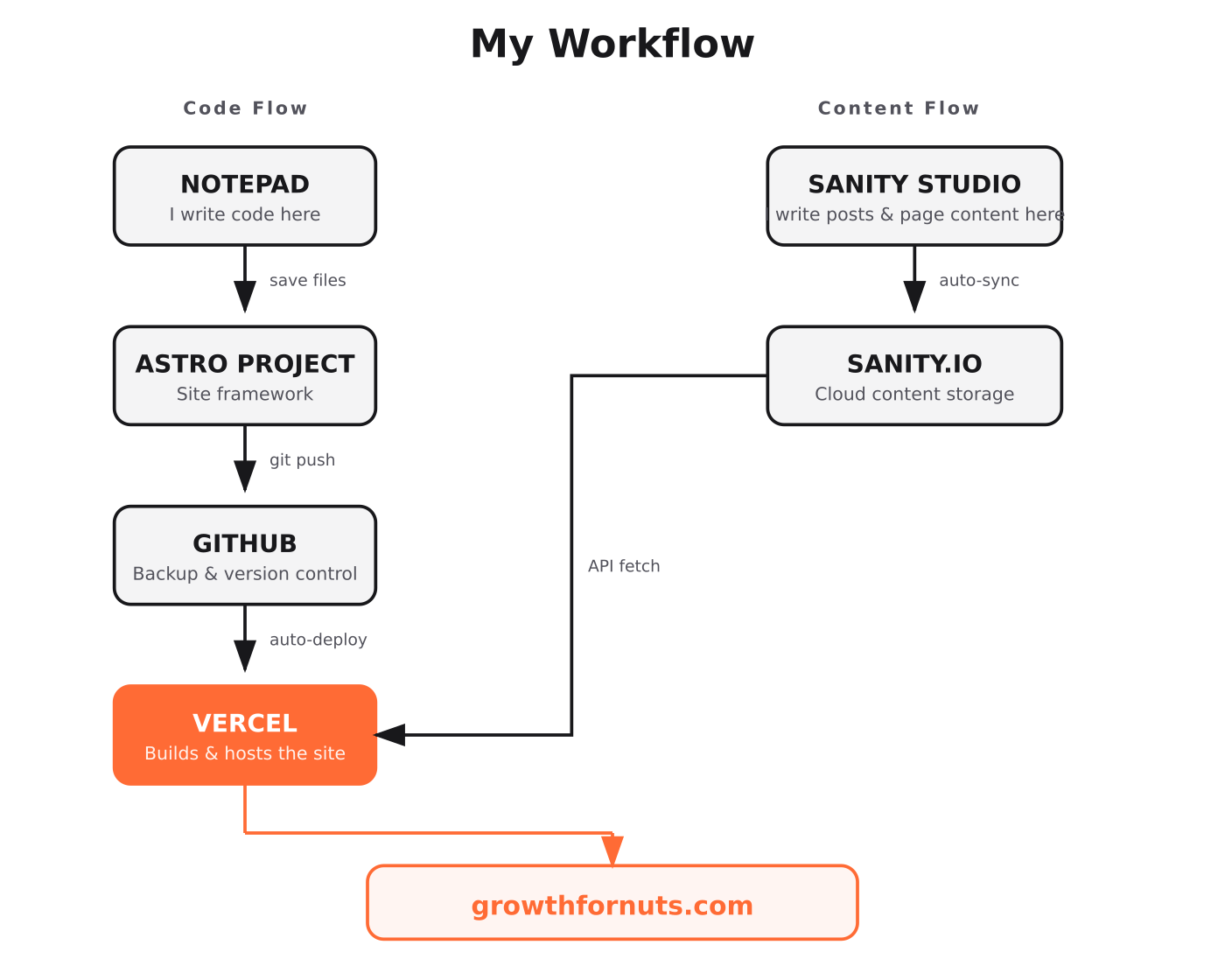
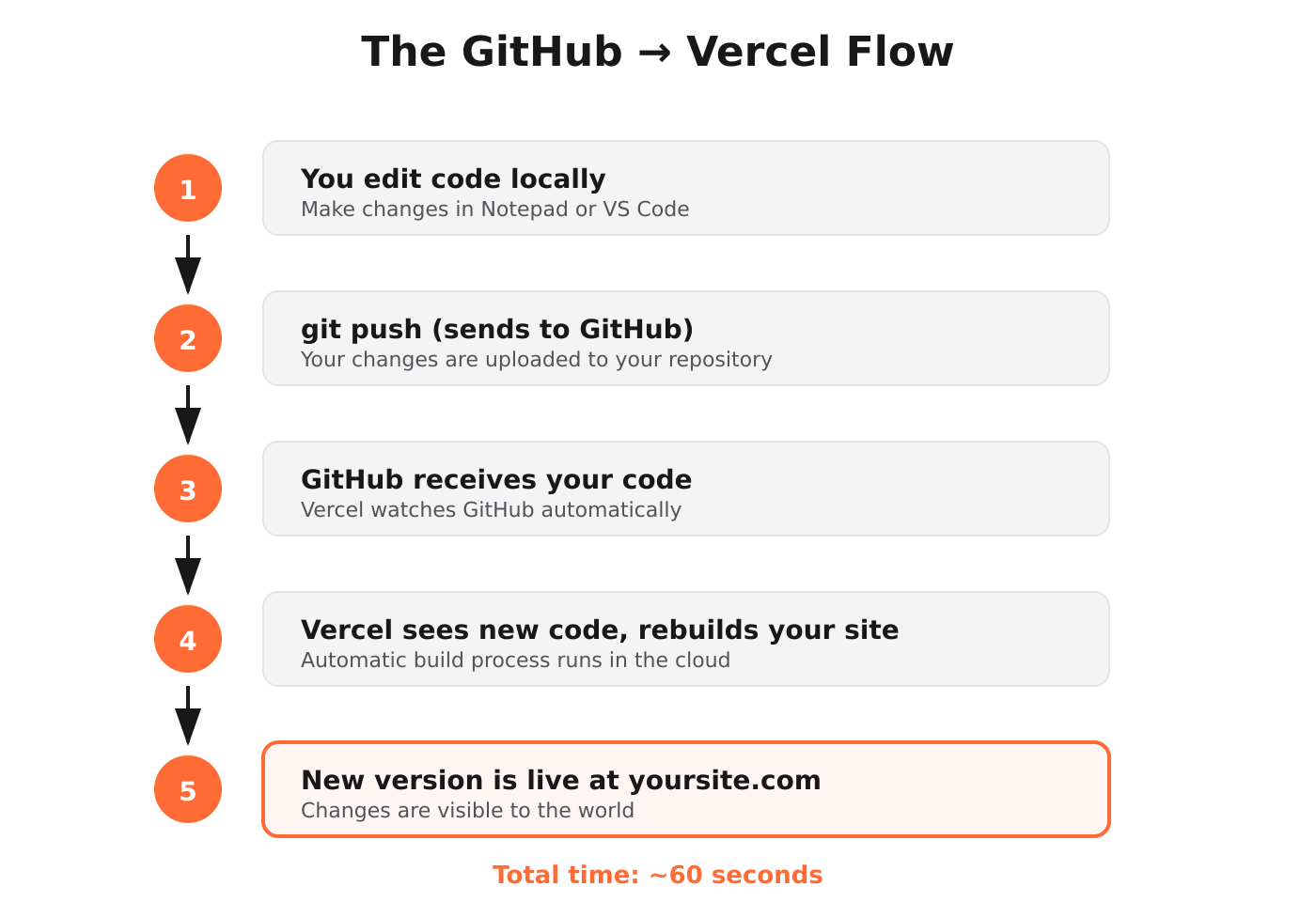
The magic: When I push code to GitHub, Vercel automatically rebuilds and deploys my site. When I publish a post in Sanity, the content appears on the site. No manual uploading. No FTP. No server management.
What I Built (The Proof)
Before I explain the how, let me show you the what.
growthfornuts.com includes:
1. A marketing website with custom design, responsive layout, and fast load times
2. A blog with SEO optimization, meta tags, and social sharing previews
3. An email signup system connected to Buttondown for newsletter management
4. A content management system where I write posts without touching code
5. Automatic deployments that update the live site when I push changes
Behind the scenes, I also built:
6. A web crawler that visits competitor websites and extracts their pages
7. An AI-powered entity extractor that identifies business services from web content
8. A scoring system that rates and filters the extracted data
9. A competitive analysis tool that compares my offerings against competitors
All of this runs. All of this works. All of this cost me $20/month plus about $1/month for the domain.
The Monthly Cost Breakdown
- Claude Pro: $20.00 (The only paid subscription)
- Vercel (hosting): $0.00 (Free tier, 100GB bandwidth)
- GitHub (code storage): $0.00 (Free for public repositories)
- Sanity CMS (content): $0.00 (Free for up to 3 users)
- Astro (site framework): $0.00 (Open source)
- Python (programming): $0.00 (Open source)
- Groq (AI API): $0.00 (Free tier, ~6,000 requests/day)
- Ollama (local AI): $0.00 (Open source, runs on your laptop)
- Buttondown (email): $0.00 (Free up to 100 subscribers)
- Domain (GoDaddy): ~$1.00 ($12/year)
Total: ~$21/mo
Compare this to alternatives:
Squarespace: $16-49/mo (Limited customization, no AI tools)
WordPress + Hosting: $20-50/mo (Plugin conflicts, security issues, maintenance)
Webflow: $14-39/mo (Learning curve, limited backend)
Hire a freelance developer: $2,000-10,000 one-time (Ongoing costs for changes)
Full-time developer: $8,000-15,000/mo (Salary, benefits, management)
The $20 Claude subscription replaces all of it.
The Local AI Detour (Why I Use Groq Instead of Ollama)
When I decided to add AI to my entity extraction, I wanted to run it locally. No API costs. No sending data to the cloud. Complete control.
So I installed Ollama, a tool that runs AI models on your own computer.
The plan was simple:
1. Install Ollama
2. Download Llama 3.1 8B (a capable open-source model)
3. Run entity classification locally for free
The Problem: No NVIDIA GPU
I followed the setup. Ran my first test. And waited.
And waited.
And waited.
Ten minutes later, the AI had processed 10 entities. One minute per entity. At that rate, analyzing a competitor site with 200 entities would take over 3 hours.
I checked why it was so slow:
NAME ID SIZE PROCESSOR
llama3.1:8b 46e0c10c039e 5.2 GB 100% CPU
100% CPU. The model wasn't using my graphics card at all.
I dug deeper. Ran some diagnostics. Found the issue:
Intel(R) Iris(R) Xe Graphics
I have an Intel integrated GPU. Ollama's acceleration only works with NVIDIA graphics cards. Without an NVIDIA GPU, the model runs entirely on the CPU, which is painfully slow.
The Pivot: Groq Cloud API
I had two options:
1. Buy a new laptop with an NVIDIA GPU ($1,000+)
2. Use a cloud API that runs the same model on fast servers
I chose option 2.
Groq offers a free tier that runs Llama 3.1 8B (the same model I was trying to run locally) on their specialized hardware. The free tier includes about 6,000 requests per day. More than enough for development.
The setup took 10 minutes:
1. Create an account at console.groq.com
2. Generate API key
3. Install the Groq Python package: pip install groq
4. Change a few lines in my script
The result? Responses that took 10 minutes locally now take 1-2 seconds.
The Lesson
Local AI sounds great in theory. Zero cost, complete privacy, no dependencies.
In practice, you need the right hardware. Specifically:
- NVIDIA GPU with at least 8GB VRAM for decent models
- CUDA drivers installed and working
- Patience for slower inference compared to cloud
If you have an Intel or AMD GPU (or just integrated graphics), local AI will be frustratingly slow. Cloud APIs like Groq's free tier are a better starting point.
You can always move to local later if you get the right hardware.
The Tech Stack Explained for Non-Technical People
Here's every tool I use, explained as if you've never touched a computer beyond email and web browsing.
Command Prompt (or Terminal)
What it is: A way to talk to your computer by typing instead of clicking.
Analogy: Imagine texting your computer. Instead of clicking icons and menus, you type commands like "create a new folder" or "run this program." The computer texts back with results or error messages.
Why you need it: Every tool in this stack is controlled through Command Prompt. Once you get comfortable with it, you'll wonder why you ever clicked through menus.
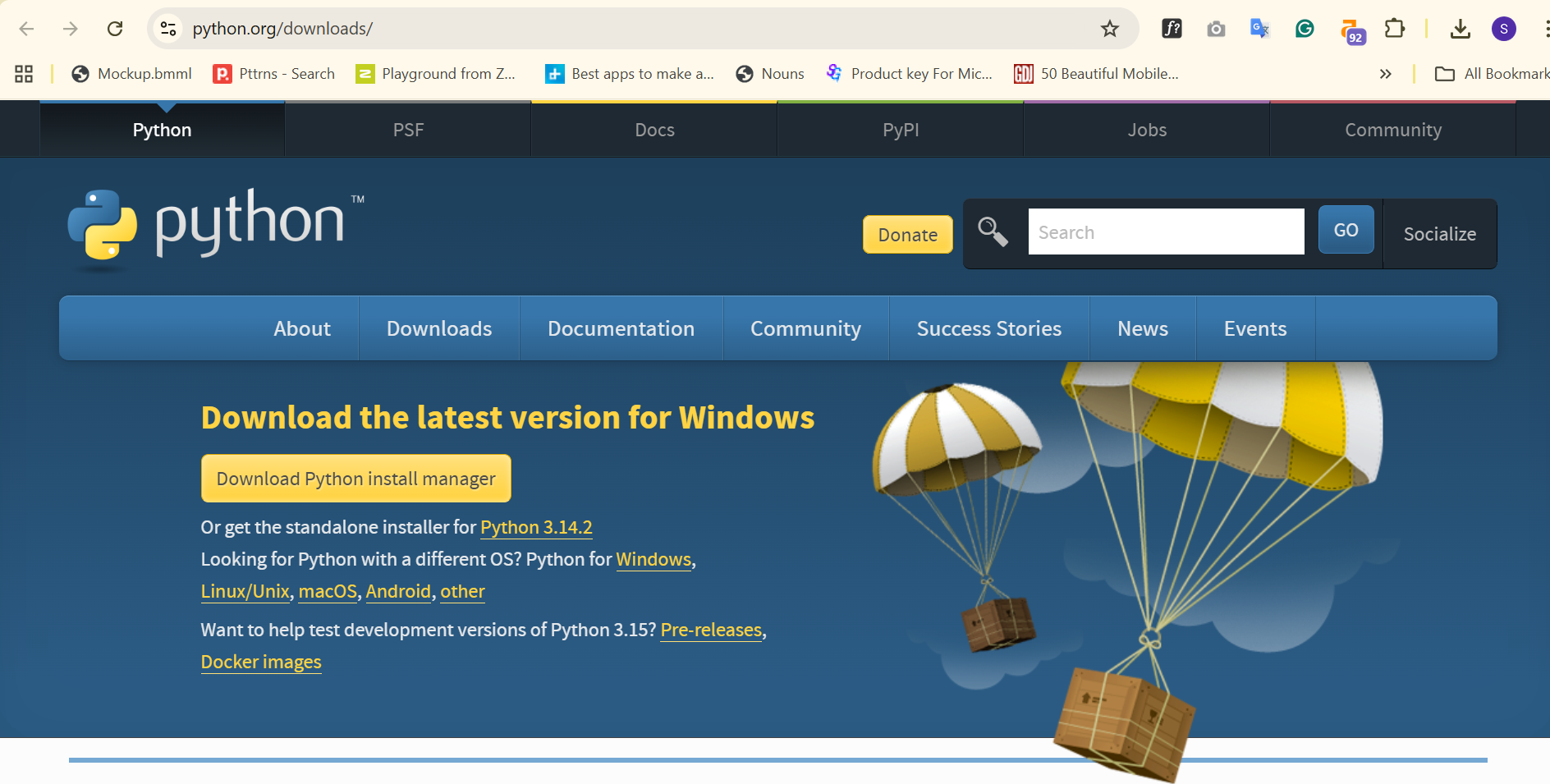
What it looks like:
C:\Users\YourName> cd Documents
C:\Users\YourName\Documents> mkdir my-project
C:\Users\YourName\Documents> cd my-project
C:\Users\YourName\Documents\my-project>
That's it. You typed "go to Documents," "create a folder called my-project," and "go into that folder." Not scary at all.
Python
What it is: A programming language. A way to write instructions that computers can follow.
Analogy: English is how you communicate with humans. Python is how you communicate with computers. It has grammar rules, vocabulary, and syntax. But unlike English, computers are literal. They do exactly what you tell them, nothing more, nothing less.
Why you need it: Python runs the AI scripts that power the competitive intelligence tool. It's also one of the easiest languages to read and write.
What it looks like:
# This script prints "Hello, World!" to the screen
print("Hello, World!")
# This script adds two numbers
result = 5 + 3
print(result) # Outputs: 8
See? Almost readable English. You don't need to write Python. Claude writes it for you. You just need to run it.
How to check if Python is installed:
Open Command Prompt and type: python --version
If you see something like Python 3.11.4, you're good. If you see an error, you need to install it. Installation steps are in the "Build Your First Site" section below.
GitHub
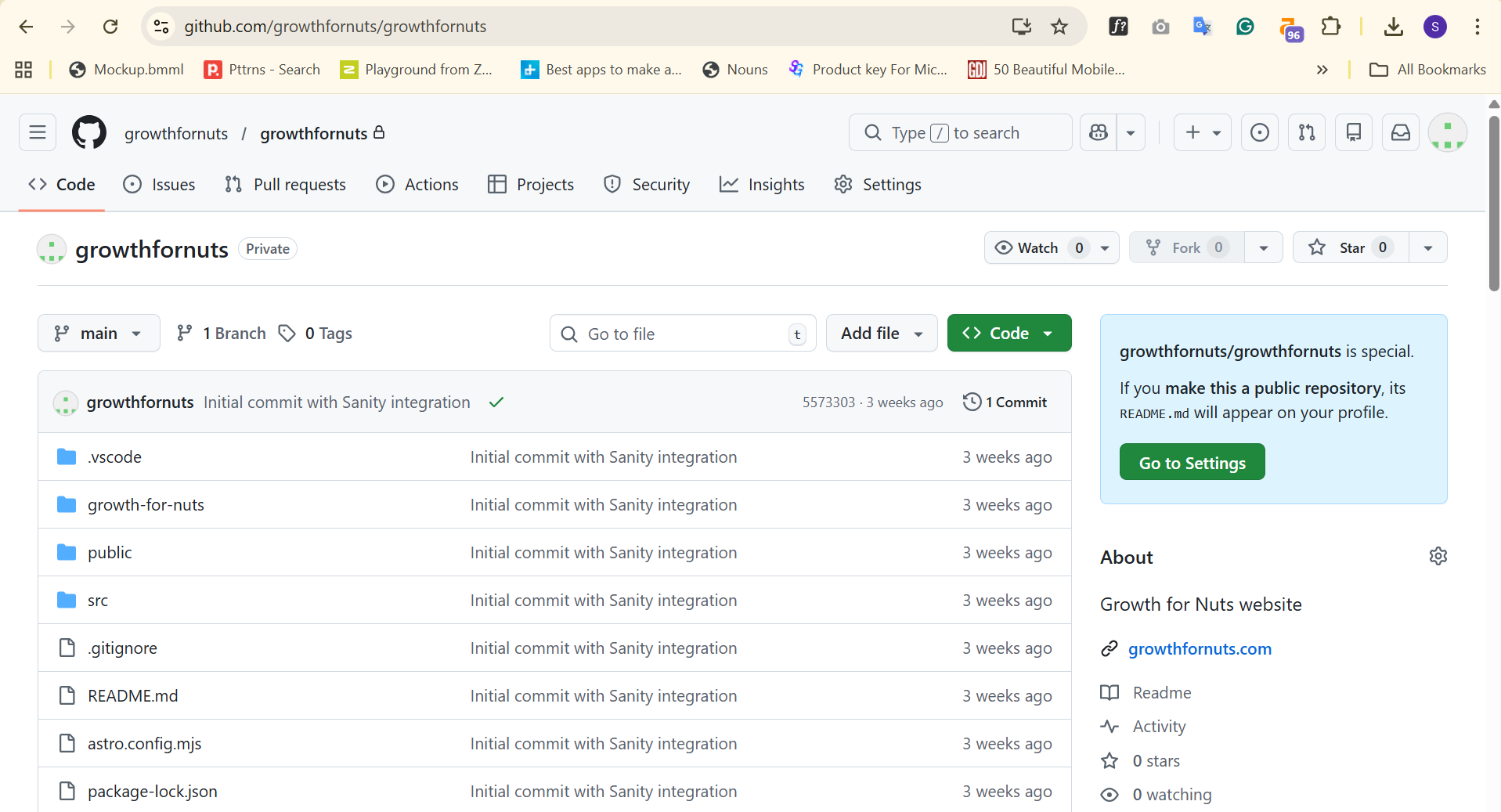
What it is: A website that stores your code and tracks every change you make.
Analogy: Google Docs for code, but better. Imagine if Google Docs saved a snapshot every time you made a change, and you could go back to any previous version instantly. That's GitHub. It also lets you collaborate with others and serves as a backup if your computer dies.
Why you need it: Vercel (your hosting) connects to GitHub. When you push code to GitHub, Vercel automatically updates your live website. No manual uploads, no FTP, no hassle.
Key terms:
Repository (repo): A project folder stored on GitHub
Commit: A saved snapshot of your changes
Push: Upload your local changes to GitHub
Pull: Download changes from GitHub to your computer
What it looks like:
git add .
git commit -m "Added email signup form"
git push
Three commands. Your changes are saved, documented, and uploaded.
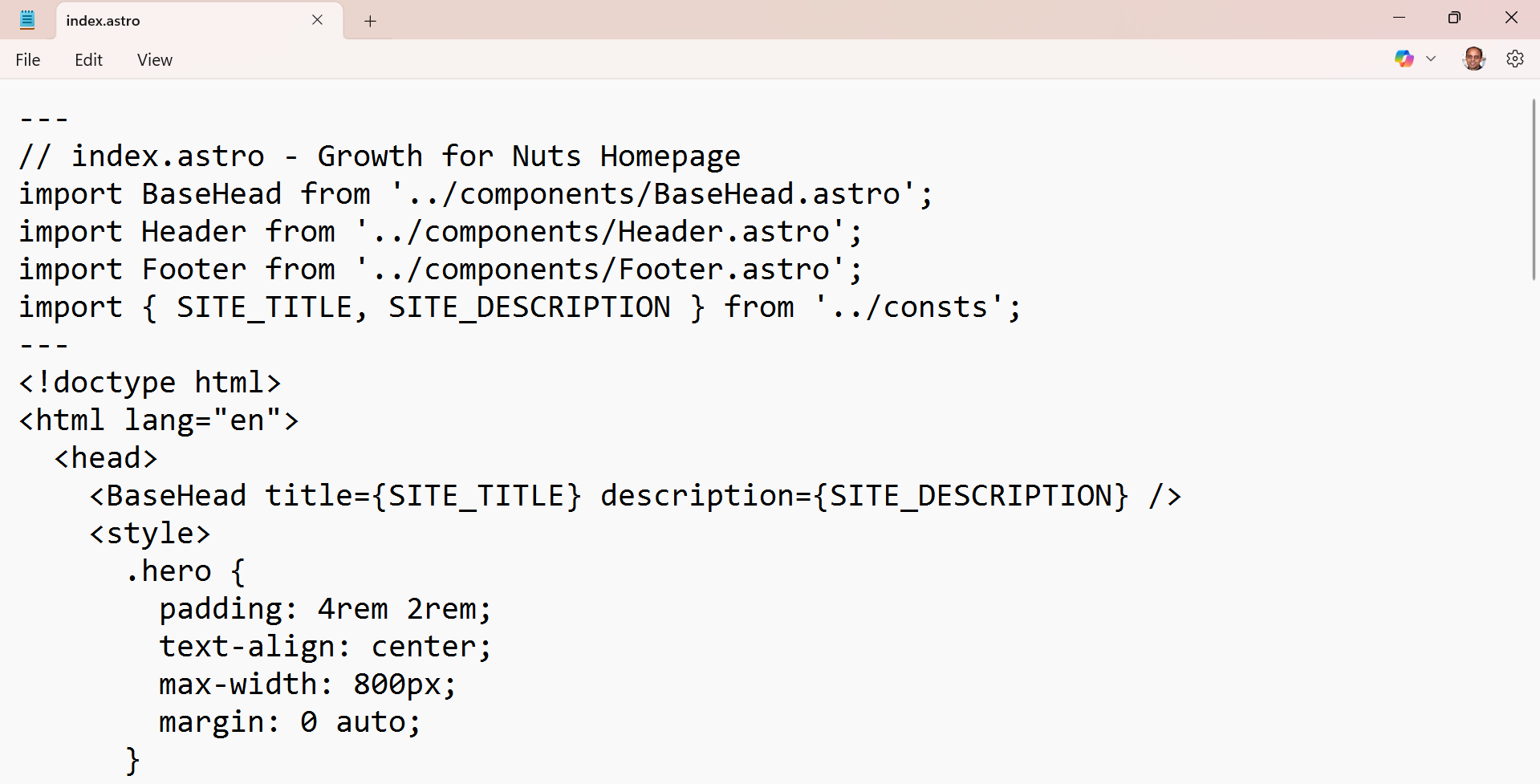
Notepad (and VS Code)
What it is: A text editor where you write and edit code files.
Notepad comes with Windows. It's simple, no installation required. You can write any code file with it.
VS Code is a free upgrade. It color-codes your code (makes errors easier to spot), has auto-complete, and includes a built-in terminal so you don't need to switch windows.
I mention both because I started with Notepad, which is already on my computer. As I became more comfortable, I switched to VS Code for its additional features. Start with Notepad. Upgrade when you're ready.
To open a file in Notepad from Command Prompt:
notepad src\pages\index.astro
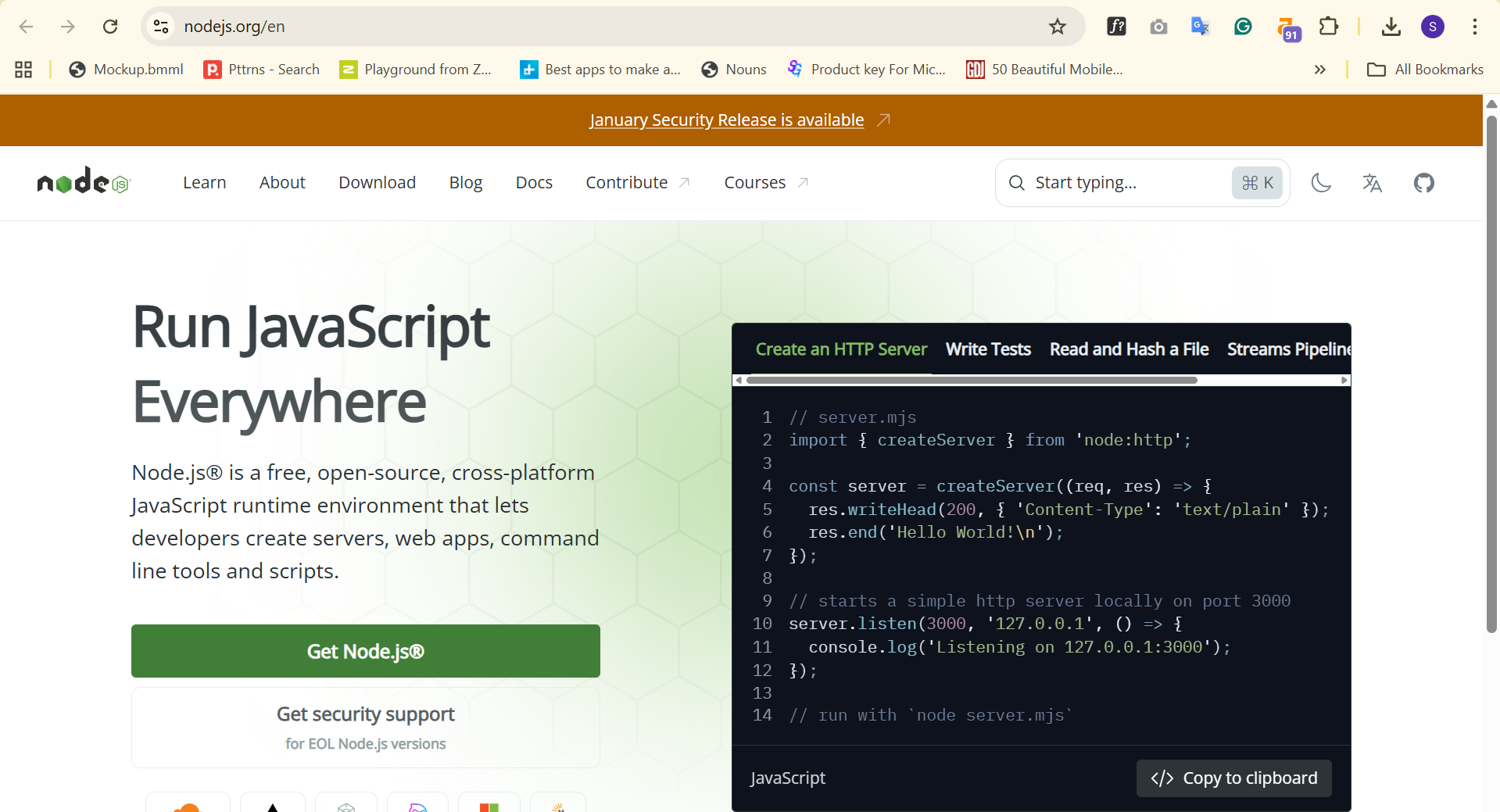
Node.js
What it is: A program that runs JavaScript code on your computer.
Analogy: Python runs Python code. Node.js runs JavaScript code. Many web development tools (including Astro) are built with JavaScript, so you need Node.js to use them.
Why you need it: Astro, Sanity, and most modern web tools require Node.js. Install it once and forget about it.
How to check if Node.js is installed:
node --version
npm --version
You should see something like v20.10.0 and 10.2.0.
Installation steps are in the "Build Your First Site" section below.
Astro
What it is: A framework for building websites.
Analogy: IKEA furniture for websites. Instead of building a website from scratch (cutting your own wood, forging your own screws), Astro gives you pre-made pieces that you assemble. It handles the complex stuff (performance, optimization, routing) so you can focus on content and design.
Why Astro over others:
- Faster than WordPress, React, or Next.js for content sites
- Simple to understand (files become pages)
- Works perfectly with Sanity CMS
- Free and open source
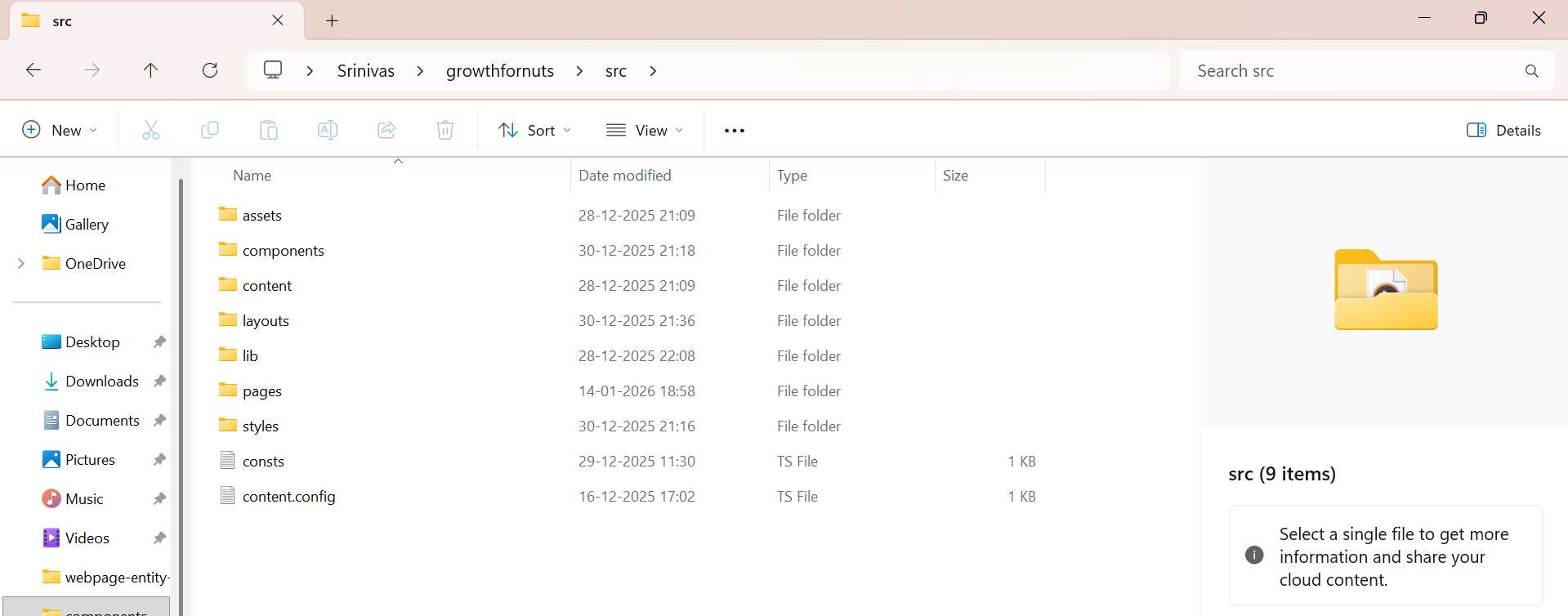
What it looks like:
my-website/
├── src/
│ ├── pages/
│ │ ├── index.astro (becomes yoursite.com/)
│ │ ├── about.astro (becomes yoursite.com/about)
│ │ └── blog/
│ │ └── my-post.astro (becomes yoursite.com/blog/my-post)
│ ├── components/
│ │ ├── Header.astro
│ │ └── Footer.astro
│ └── layouts/
│ └── BaseLayout.astro
└── public/
└── images/
Each .astro file in the pages folder becomes a page on your website. That's it. No configuration, no routing tables, no complexity.
Sanity CMS
What it is: A content management system. A place to write and manage your blog posts without touching code.
Analogy: WordPress's editor, but without WordPress's problems. You get a nice visual interface to write posts, add images, and organize content. When you publish, it appears on your site automatically.
Why Sanity over WordPress:
- No plugins to break
- No security vulnerabilities
- No hosting to manage
- No database to maintain
- Free for up to 3 users
- Faster and more flexible
What it looks like: You open Sanity Studio in your browser. On the left, you see your list of posts. Click one to edit. The right side shows a form: title field, body editor (like a simple word processor), image upload buttons. Write your post, click Publish. Done.
Vercel
What it is: A company that hosts your website for free and makes it accessible to the world.
Analogy: A megaphone for your website. Your website lives on your computer. Vercel takes a copy and puts it on servers around the world so anyone can visit it. When you make changes and push to GitHub, Vercel automatically updates the live site.
Why Vercel:
- Free tier is generous (100GB bandwidth/month)
- Automatic HTTPS (the padlock in browsers)
- Global CDN (fast loading worldwide)
- Zero configuration
- Connects directly to GitHub
The GitHub → Vercel flow:
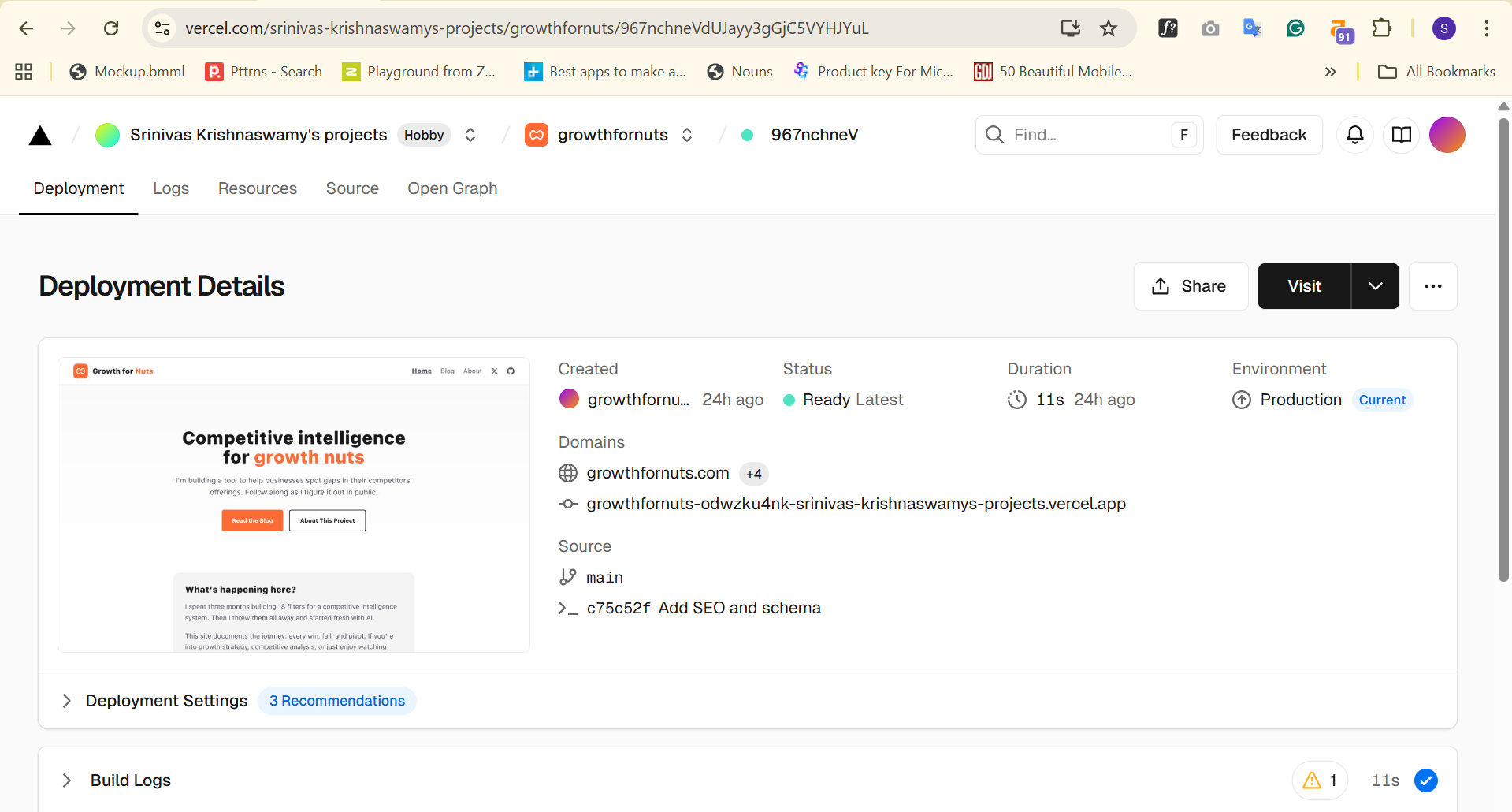
This is how a successful deployment in Vercel looks like.
Claude
What it is: An AI assistant made by Anthropic that can write code, explain concepts, debug errors, and guide you through technical tasks.
Analogy: A patient, knowledgeable developer sitting next to you 24/7. You describe what you want in plain English. Claude writes the code. When something breaks, you show Claude the error. Claude fixes it. No judgement, no frustration, no hourly rate.
Why Claude over ChatGPT:
- Better at following complex instructions
- Produces cleaner, more reliable code
- Handles longer conversations without losing context
- Memory across conversations (remembers your project context)
- $20/month flat rate (with limits on usage)
How I Actually Use Claude (The Real Workflow)
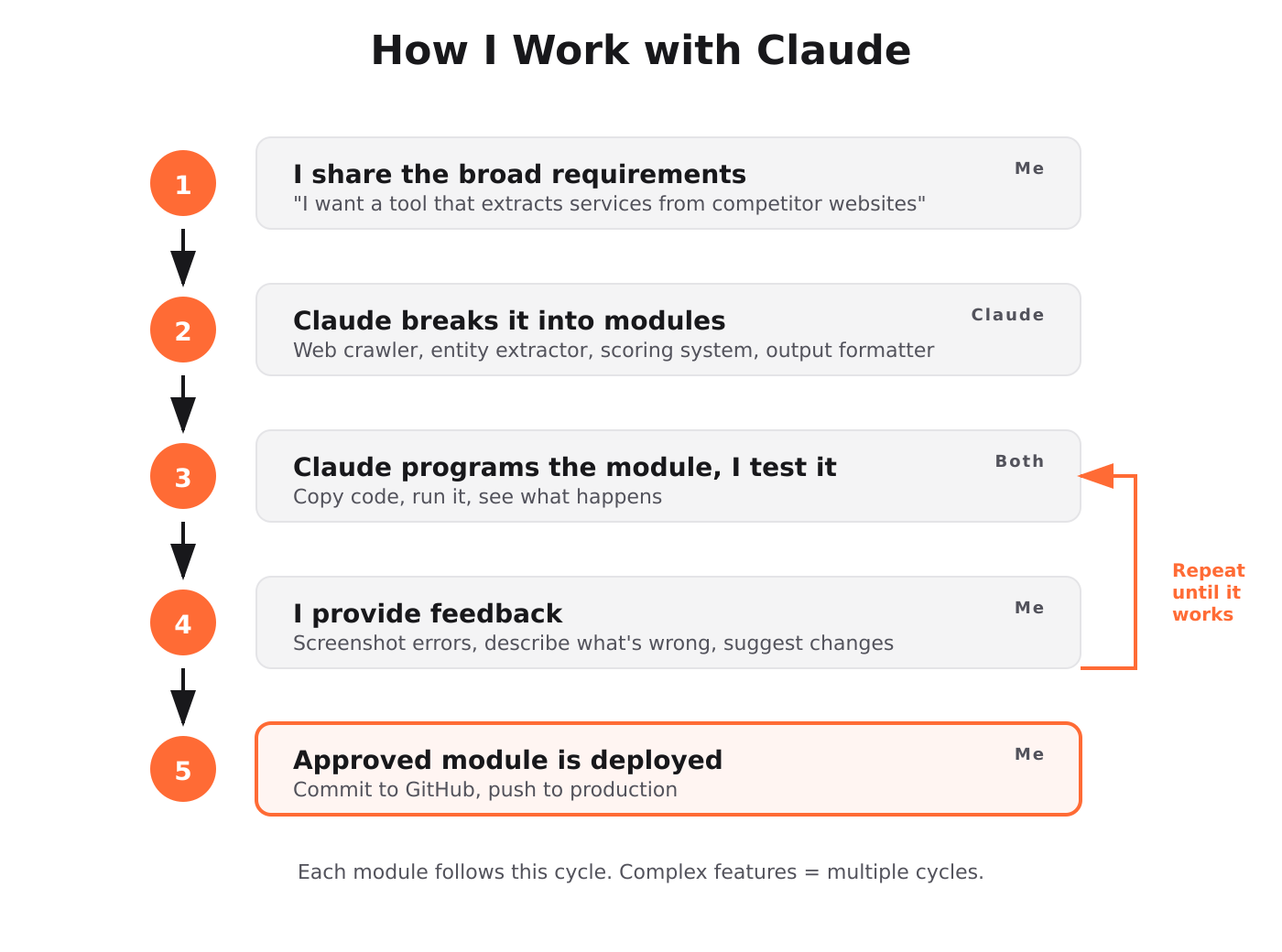
Let me show you how I actually work with Claude. This isn't theoretical. This is what I go through during a building session.
The Development Cycle
The Conversation Pattern
Here's a real example from when I was setting up the Sanity connection:
Me: I have Astro running. Now I want to add Sanity CMS so I can write blog posts through a visual interface. Walk me through it step by step. I'm on Windows and using Command Prompt.
Claude: [Gives step 1: Install Sanity packages]
Me: Done. What's next?
Claude: [Gives step 2: Create Sanity project]
Me: I see this in Command Prompt: [pastes or screenshots the output]
Claude: [Interprets the output and gives next step]
Notice the pattern:
1. I describe what I want in plain English
2. Claude gives me ONE step at a time
3. I do that step and report back what I see
4. We continue until it's done
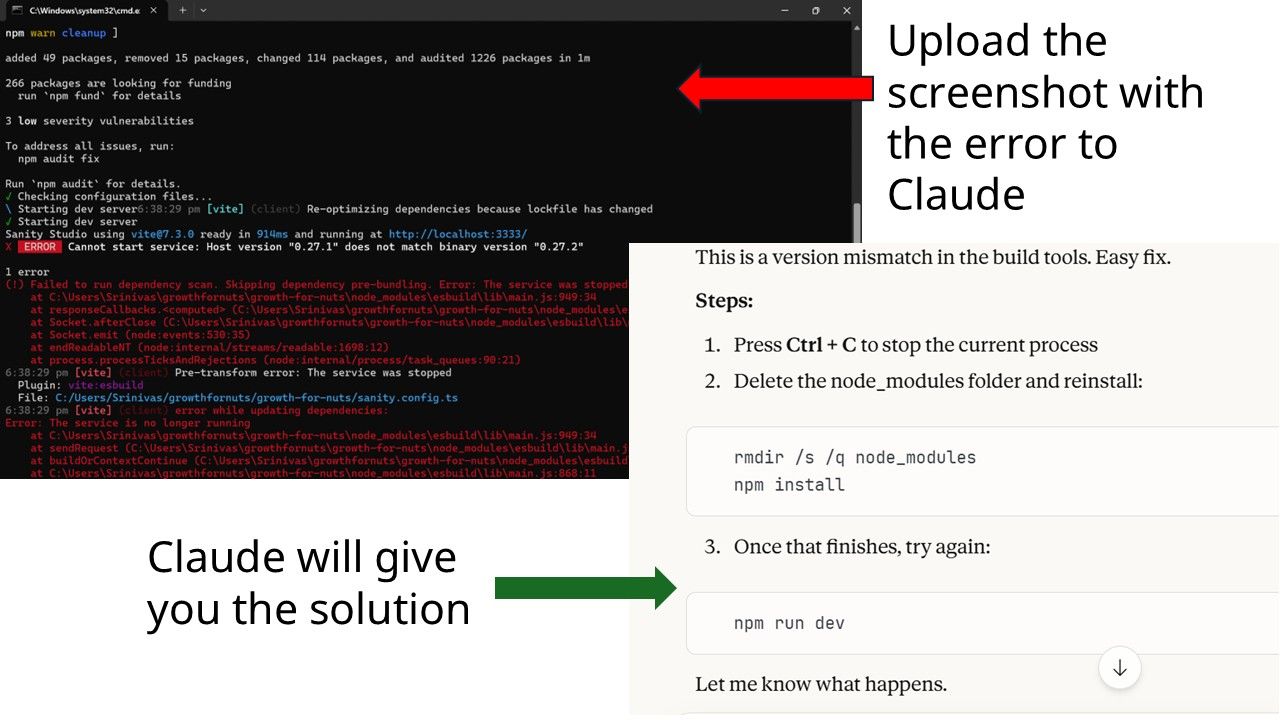
When Things Break: Screenshot the Error
Here's what I do when something doesn't work:
1. I see an error in Command Prompt
2. I take a screenshot (Windows + Shift + S)
3. I paste the screenshot directly into Claude
4. Claude reads the error from the image and tells me how to fix it
No copying text, no formatting issues, no "which part of the error do you need?" Just screenshot and paste. Claude figures it out.
The Secret Weapon: Handoff Documents
Here's something I learned after hitting Claude's conversation length limits a few times.
When a conversation gets long, Claude starts to lose context. The solution? Handoff documents.
At the end of a productive session, I ask Claude:
"Create a handoff document so I can continue this in a new chat."
Claude creates a markdown file with:
- What we accomplished
- Current status of everything
- Exact file locations
- Commands to run
- A prompt to start the next conversation
I save that document. When I start a new chat, I upload it and say "Continue from this handoff document." Full context restored.
Naming Your Chats
Claude doesn't automatically name conversations in a useful way. I rename every chat to something descriptive:
- "Growthfornuts - Sanity Setup - Date"
- "Multi-PEO - Entity Extraction Fix - Date"
- "Blog Post - Vibe Coding Draft - Date"
This way, when I need to find something from a previous session, I can scroll through my chat list and find it immediately.
Context Across Chats
One of Claude's advantages: it remembers context across conversations. Not everything, but key details about your projects, preferences, and working style.
I once asked Claude about my website, and it remembered my brand colors (#FF6B35), my font choice (Plus Jakarta Sans), and that I prefer Notepad over VS Code. I never re-explained those things.
Step-by-Step: Build Your First Site
Here's the exact process to go from zero to a live website. Block out 3-4 hours for your first time. It gets faster after that.
Part A: Set Up Your Computer (One-Time, 45 minutes)
1. You Already Have Notepad
Notepad comes with Windows. To open it:
- Press Windows key, type "Notepad", press Enter
That's your code editor. You can upgrade to VS Code later if you want features like color-coded syntax and auto-complete. For now, Notepad works fine.
Download VS Code later from: https://code.visualstudio.com/
2. Install Node.js
Node.js runs JavaScript tools like Astro.
1. Go to https://nodejs.org/
2. Click the LTS version (the one that says "Recommended for most users")
3. Run the installer, accept all defaults
4. Open Command Prompt (Windows key → type "cmd" → Enter)
5. Type: node --version
6. You should see a version number like v20.10.0
If you see an error, close Command Prompt, reopen it, and try again.
3. Install Python
Python runs your AI scripts.
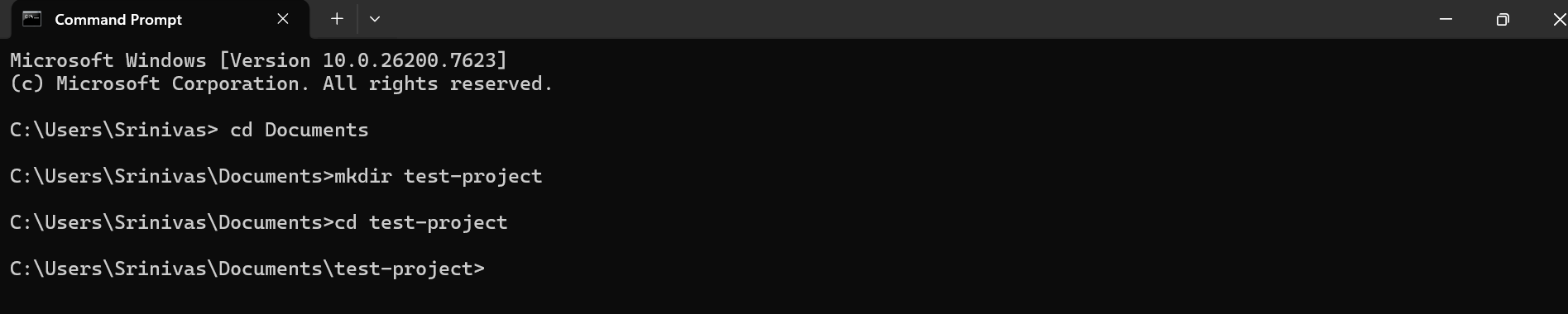
1. Go to https://www.python.org/downloads/
2. Click the big yellow "Download Python" button
3. Run the installer
4. Critical: Check the box that says "Add Python to PATH" before clicking Install
5. Click "Install Now"
6. Open Command Prompt and type: python --version
7. You should see a version number like Python 3.12.0
4. Install Git
Git manages your code versions and connects to GitHub.
1. Go to https://git-scm.com/downloads
2. Download the installer for Windows
3. Run the installer, accept all defaults
4. Open Command Prompt and type: git --version
5. You should see a version number like git version 2.42.0
5. Configure Git
Tell Git who you are (this shows up in your commit history):
git config --global user.name "Your Name"
git config --global user.email "your.email@example.com"
Part B: Set Up Your Accounts (One-Time, 20 minutes)
1. GitHub Account
1. Go to https://github.com/
2. Click "Sign up"
3. Follow the prompts
4. Verify your email
2. Vercel Account
1. Go to https://vercel.com/
2. Click "Sign Up"
3. Choose "Continue with GitHub"
4. Authorize Vercel to access your GitHub
3. Sanity Account
1. Go to https://www.sanity.io/
2. Click "Get started"
3. Sign up with Google or GitHub
4. You'll create your first project later
4. Claude Pro Subscription
1. Go to https://claude.ai/
2. Sign up for an account
3. Click "Upgrade to Pro" ($20/month)
4. This is your only expense
5. Buttondown Account (for email signups)
1. Go to https://buttondown.com/
2. Click "Get started for free"
3. Create your newsletter
4. Free up to 100 subscribers
Part C: Create Your Website (2-3 hours with Claude)
Now the fun begins. Open Claude and start a conversation.
Rename the chat to something like "My Website - Initial Setup" so you can find it later.
Your First Message to Claude:
"I want to create a new website using Astro. Walk me through it step by step. I'm on Windows and using Command Prompt. I want to put the project in C:\Users\[YourName]\my-website\. Give me one step at a time and wait for me to confirm before moving to the next step."
Claude will guide you through:
1. Creating the Astro project
2. Running it locally
3. Pushing to GitHub
4. Deploying to Vercel
5. Connecting a custom domain (if you have one)
When you see output in Command Prompt: Copy it or screenshot it and paste it into Claude. Claude will interpret what happened and tell you the next step.
When something breaks: Screenshot the error, paste it to Claude. Claude will read the error and tell you how to fix it.
Part D: Add Sanity CMS (1-2 hours with Claude)
Once your basic site works, start a new chat (or continue the existing one if it's not too long).
"I have an Astro site working on Vercel. Now I want to add Sanity CMS so I can write blog posts through a visual interface. Walk me through it step by step."
Claude will guide you through:
1. Creating a Sanity project
2. Defining your content schema
3. Installing the Sanity client in Astro
4. Writing queries to fetch posts
5. Displaying posts on your site
Part E: Add Email Signup (30 minutes with Claude)
"I want to add an email signup form to my homepage. I use Buttondown with username 'myusername'. The form should match my brand styling. Show me the code to add to my index.astro file."
Claude provides the code. You paste it into Notepad, save the file, and refresh your browser.
Part F: Create a Handoff Document
Before ending your session:
"Create a handoff document so I can continue this in a new chat. Include what we accomplished, current file locations, and a prompt to start the next conversation."
Save the document Claude creates. Upload it to your next chat to restore full context.
The Biggest Lesson: AI Will Solve the Wrong Problem If You Let It
This is the most important thing I learned. And no tutorial will tell you this.
AI wants to solve the problem directly in front of it. It doesn't step back and ask "should we even be solving this problem?"
Here's what happened to me.
The 18 Filters Disaster
I was building a tool to extract business services from competitor websites. The first version pulled in garbage: "Subscribe to Newsletter," "Powered by WordPress," cookie consent banners.
So I asked Claude to help me filter it out.
Claude gave me Filter 1: Skip anything that looks like a button. It worked for some cases.
But new garbage appeared. So Claude gave me Filter 2: Skip text under 3 words.
More garbage. Filter 3: Exclude navigation patterns.
More. Filter 4: Remove footer content.
This went on for weeks. Filter after filter after filter.
By the end, I had 18 filters and 847 lines of pattern-matching logic. I was proud of how comprehensive it was.
Then I tested on real competitor sites.
The filters rejected 100% of entities as noise. Everything. Including the real services I was trying to extract.
The accuracy rate? 43%.
Every fix broke something else. Block "Schedule a Demo" and you also block "Managed Demo Environments." Filter footer patterns and you lose services that some companies list in their footer.
I was in a whack-a-mole game with no end.
The Intervention
One day, I stopped and asked myself: Why am I adding more filters?
The answer was obvious once I said it out loud: rules can't understand context.
"Platform" by itself is noise. "Analytics Platform" is a real product. No amount of regex will ever understand that difference.
The solution wasn't more filters. The solution was Gen AI.
AI understands context. It knows "Subscribe to Our Newsletter" isn't a service. It doesn't need 18 rules to figure that out.
I deleted 847 lines of filter logic and replaced them with a single AI prompt. The accuracy jumped from 43% to over 85%.
The Lesson for Vibe Coding
Claude (and any AI) will happily keep solving the immediate problem you give it. Ask for another filter, you get another filter. Ask for another rule, you get another rule.
It's your job to step back and ask: Are we solving the right problem?
AI is a tool. A very smart tool. But it doesn't know your big picture. It doesn't know that 18 filters are insane. It doesn't know that there's a fundamentally better approach waiting if you just zoom out.
You have to be the strategic thinker. The AI handles tactics.
What I Learned the Hard Way
Three months of vibe coding taught me lessons no tutorial mentioned.
1. You own the strategy, AI owns the tactics
This is the most important lesson, covered in detail in the 18 filters story above. AI handles the how. You handle the why and the what. However, you have the power to change the way AI responds to your prompt by just commanding it. By default, AI is in a “I will find a solution to anything that you may throw at me” mode. This can become dangerous, as called out earlier.
You can have the AI model play the role of a seasoned venture capitalist or a brutally honest devil’s advocate to critique your strategy. I had some rather argumentative sessions when debating the scope of what I should even attempt to build. This is pure gold for a bootstrapped, single-founder venture.
2. One step at a time
My first instinct was to ask Claude for everything at once. "Build me a website with a blog, email signup, and AI tools."
Claude would give me a wall of code. I'd paste it. It wouldn't work. I'd have no idea which part broke.
Now I ask for one thing at a time. "Add an email signup form." Test it. Works? Move on. Doesn't work? Fix it before adding more complexity.
3. Screenshot your errors
When I started, I tried to copy the error text from the Command Prompt. Formatting would break. I'd miss important parts. Claude would ask clarifying questions.
Now I screenshot the entire Command Prompt window and paste it. Claude reads images. It sees exactly what I see. No lost information.
4. Name your chats
After a few weeks, I had dozens of Claude conversations. Finding the one where I set up Sanity? Impossible.
Now I rename every chat immediately. "Growthfornuts - Brand Setup" is much easier to find than "New Chat (4)".
5. Handoff documents are essential
Long conversations lose context. Claude starts forgetting things from earlier in the chat. I'd repeat myself. Claude would give inconsistent answers.
Handoff documents solve this. At the end of a session, I ask Claude to summarize everything into a document. Next session, I upload it. Full context restored.
6. Commit constantly
After every working change:
git add .
git commit -m "Added email signup form"
git push
This takes 10 seconds. It's saved me hours of re-doing work I accidentally broke.
7. Walk away when stuck
Sometimes I'd go in circles for an hour. Same error, same attempted fixes, same frustration.
The solution? Walk away. Get coffee. Come back in 30 minutes.
Fresh eyes catch obvious mistakes. I can't count how many times I returned from a break and immediately saw the problem.
What's Next
This site is proof the blueprint works. But it's not the end goal.
I'm building a competitive intelligence tool for small business owners. Something that tells you what your competitors offer that you don't. Not a data dump of keywords. Not jargon. Actual insights you can act on.
I'll share the progress as I go. The wins, the fails, the pivots. Including the experiments with vibe coding using Claude.
The schedule is fluid. I'm aiming for monthly updates, possibly more frequent when there's something interesting to share. No rigid calendar, just real progress.
If you want to follow along, subscribe below. You'll get updates on the build and any new tutorials I write.
The $20/month Claude subscription changed what's possible for non-technical founders. You don't need to learn to code. You don't need to hire developers. You don't need to spend thousands on an MVP.
You need $20 plus some change, some patience, and the willingness to describe what you want and iterate until it works.
That's vibe coding. And it's how I'm building everything from here on out.
Srinivas
Chief Nut @ Growth for Nuts